
Best Free YouTube Thumbnail Makers in 2026 (Ranked & Compared)
We tested every major free thumbnail tool so you don't have to. Here are the 7 best options ranked by features, ease of use, and free-tier value.

Your thumbnail is the single most important factor in whether someone clicks your video. Not your title. Not your description. Not your tags. YouTube's own data confirms it: 90% of top-performing videos use custom thumbnails, and the difference between a 2% CTR and a 6% CTR can mean tens of thousands of extra views per video.
The good news? You don't need Photoshop or a design degree. A crop of genuinely excellent free tools has emerged in 2026, and several of them now pack AI features that would've cost hundreds of dollars a year ago.
We tested them all. Here's how they stack up.
Quick Comparison Table
| Tool | Best For | Free Tier Limit | AI Features | BG Removal | Templates |
|---|---|---|---|---|---|
| Canva | All-rounder | Unlimited designs | Yes (limited credits) | Yes | 100+ YouTube |
| Adobe Express | Professional polish | Unlimited designs | Yes (Firefly AI) | Yes | 100,000+ total |
| Fotor | Photo-heavy thumbnails | Limited | Yes | Yes | 500+ YouTube |
| Snappa | Speed | 3 downloads/month | No | No (Pro only) | Pre-sized for YT |
| Pixlr X | Advanced editing | Unlimited (ads) | Yes | Yes | Moderate |
| Pikzels | AI generation | ~5 thumbnails (watermarked) | Yes (core) | Yes | AI-generated |
| CapCut | Video creators | Unlimited | Yes | Yes | Growing |
1. Canva — The Undisputed King
Best For: Everyone, especially beginners
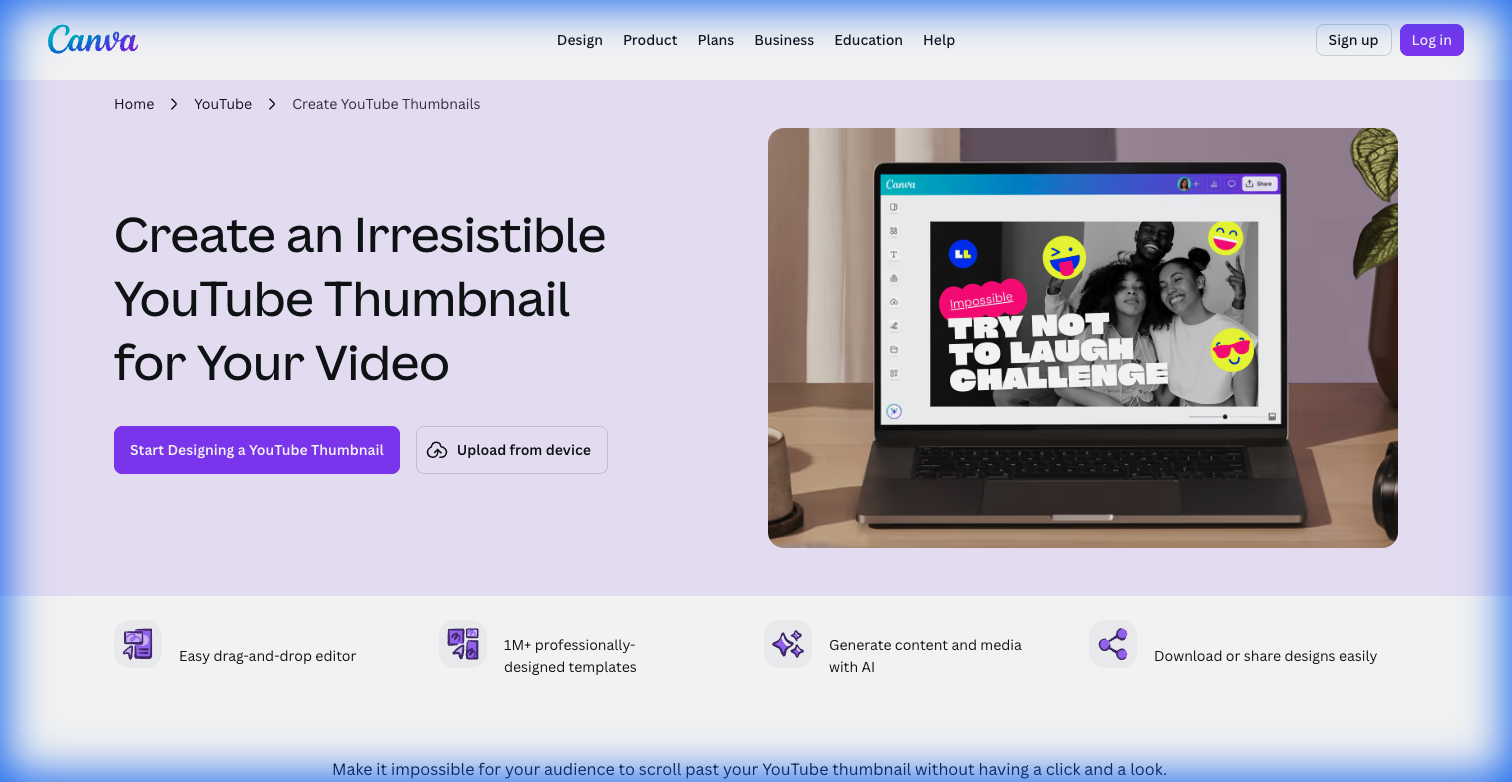
Canva's YouTube thumbnail maker page
There's a reason every "best thumbnail maker" list starts with Canva. It's earned that spot.
Canva's drag-and-drop editor is so intuitive that you'll have your first thumbnail done in under 5 minutes. The free tier gives you access to over 100 YouTube-specific templates, millions of stock photos, hundreds of fonts, and enough design elements to keep a daily uploader busy for months.
What makes it #1 in 2026: Canva's "Magic Studio" AI tools are now partially available on the free plan. You get limited credits for text-to-image generation, AI-suggested layouts, and the Dream Lab feature that turns text prompts into usable thumbnail visuals. It won't replace a dedicated AI tool, but it's a massive bonus on a free tier.
The free tier includes:
- Unlimited thumbnail designs and downloads
- 5GB cloud storage
- Collaboration with up to 10 team members
- Background remover (basic usage)
- Mobile and desktop apps
Where it falls short: Some of the best premium templates and stock photos are locked behind the Pro plan ($12.99/month). You'll see the occasional crown icon taunting you. Also, because everyone uses Canva, your thumbnails risk looking generic unless you customize heavily.
Verdict: If you're picking one tool, this is it. The free tier is absurdly generous.
2. Adobe Express — The Professional's Pick
Best For: Creators who want polished, brand-consistent thumbnails
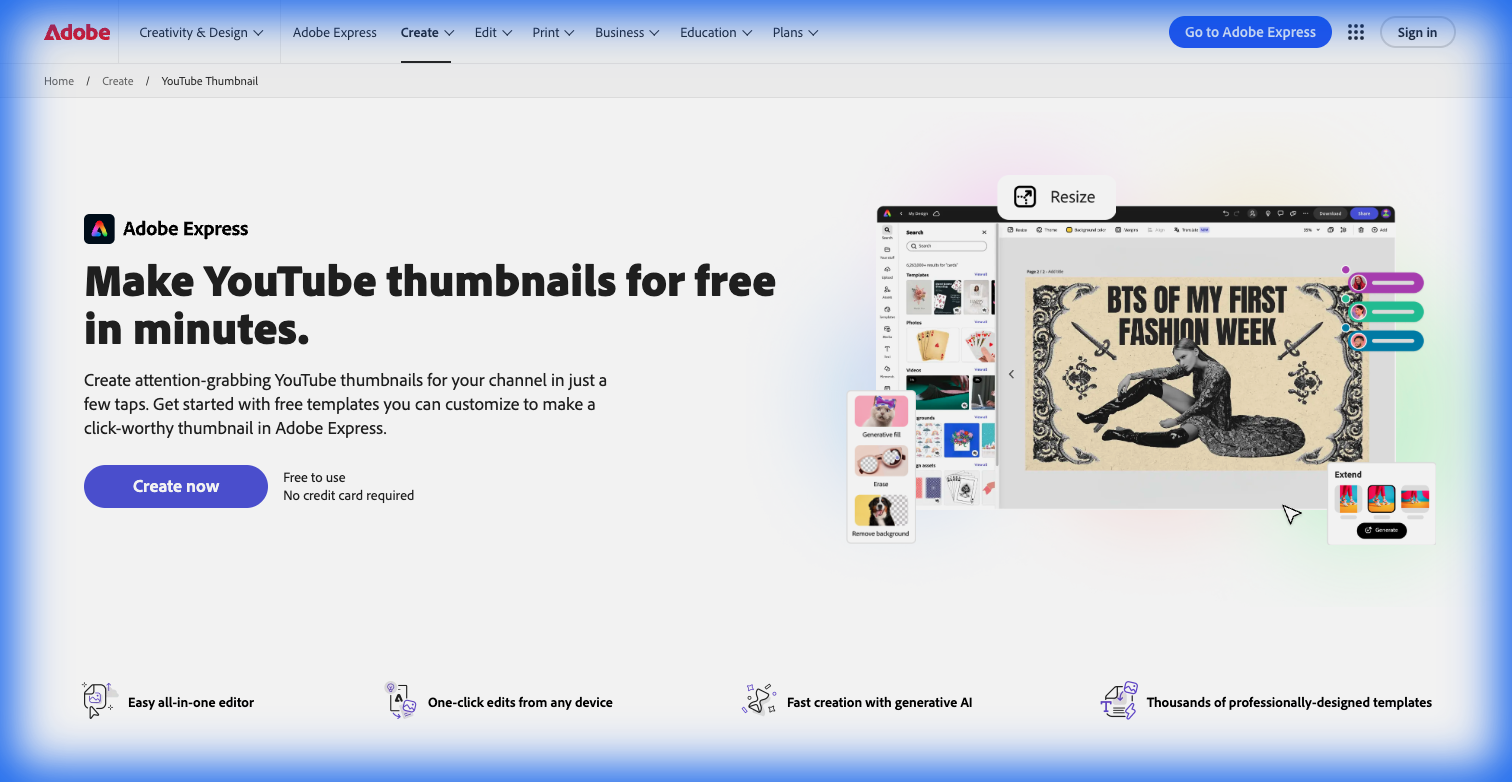
Adobe Express YouTube thumbnail maker
Adobe Express (formerly Adobe Spark) brings the Adobe design pedigree to a free, browser-based editor. The templates feel noticeably more "premium" than most competitors — cleaner typography, better colour palettes, more intentional layouts.
The standout feature on the free tier is background removal, which works impressively well for cutting out subjects and placing them on new backgrounds. You also get access to over 4,000 Adobe Fonts and a chunk of Adobe Stock's free collection.
What makes it special in 2026: Adobe's Firefly AI engine is now baked into Express. Free users get 25 generative AI credits each month for text-to-image creation and AI-powered design suggestions. If you already use Lightroom or Photoshop, the ecosystem integration is seamless — you can push assets between apps effortlessly.
The free tier includes:
- Over 100,000 templates (all content types)
- 5GB cloud storage
- Free Adobe Stock photos and elements
- Background removal
- No watermark on exports
Where it falls short: The template library, while massive, isn't as YouTube-focused as Canva's. The interface also has a slightly steeper learning curve — it's not difficult, but Canva feels more "pick up and play."
Verdict: The best choice for creators who care about design quality over speed. If your thumbnails need to look premium, start here.
3. Fotor — Best for Photo-Heavy Thumbnails
Best For: Creators whose thumbnails rely on strong photography
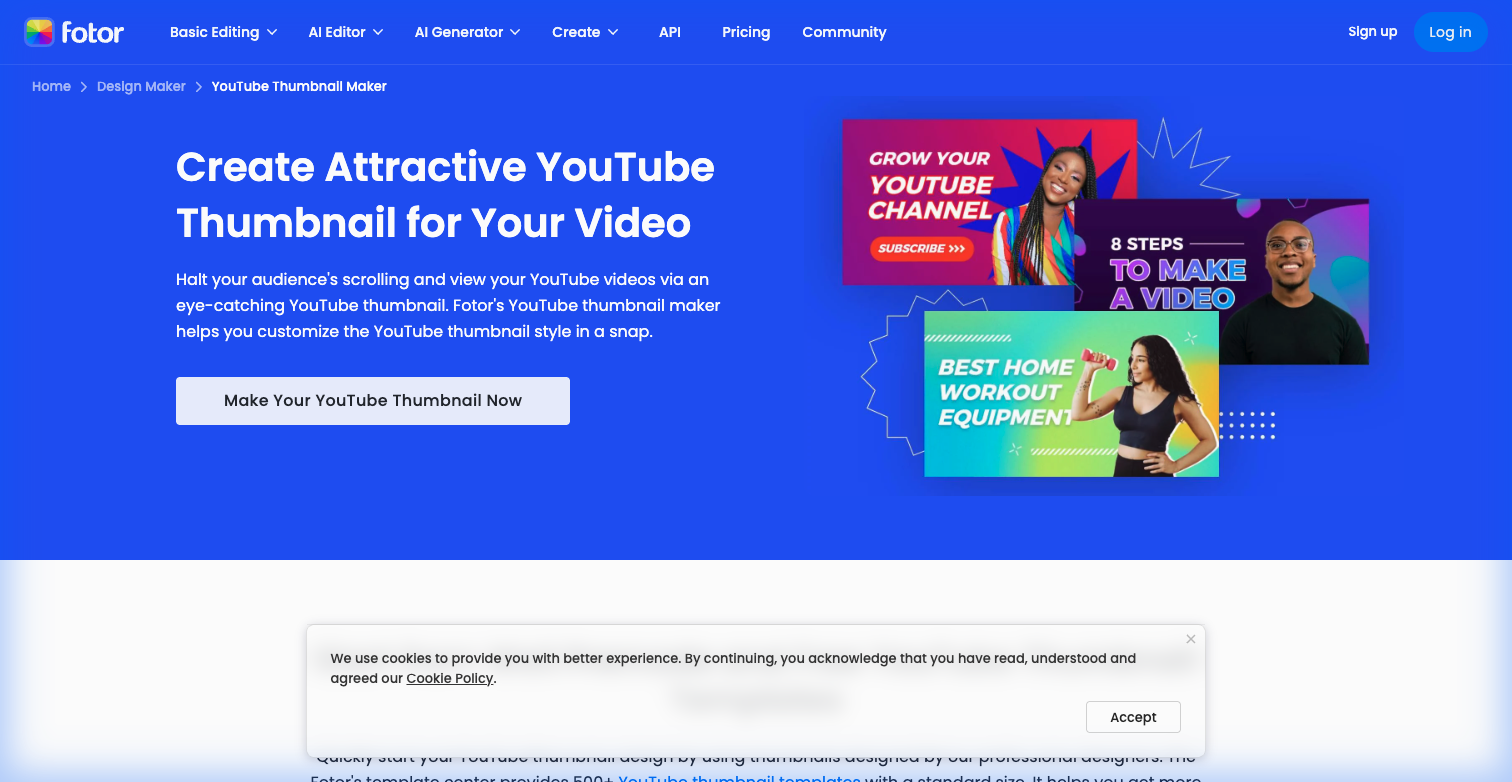
Fotor's YouTube thumbnail maker
If your content is travel, food, fitness, or anything where the photo is the star of the thumbnail, Fotor deserves a serious look. Its one-click photo enhancement tools are genuinely impressive — they'll fix lighting, boost contrast, and sharpen details in ways that make your iPhone screenshot look like it came from a DSLR.
Fotor gives you access to over 500 YouTube thumbnail templates and a solid set of AI-powered tools. The AI background remover works cleanly, and there's even an AI feature that can change facial expressions on your thumbnail photos — useful for creating those exaggerated "reaction face" thumbnails that crush it on YouTube.
The free tier includes:
- 500+ YouTube thumbnail templates
- AI-powered photo enhancement
- Basic background removal
- Text and typography tools
- JPG/PNG export
Where it falls short: The free version feels noticeably more limited than Canva or Adobe Express. Some templates carry a watermark unless you upgrade to Pro ($8.99/month), and the more powerful AI features are gated behind the paid plan. There's also no real-time collaboration feature.
Verdict: A strong pick for photography-centric creators. The photo enhancement alone is worth bookmarking.
4. Pixlr X — The Closest Thing to Free Photoshop
Best For: Creators with some design experience who want granular control
Pixlr's AI photo editor and image generator
Here's the thing about Canva and Adobe Express: they're great at templates, but they don't give you full control. Pixlr X does. It offers layer-based editing, image masking, advanced blending modes, and the kind of fine-tuning that Photoshop users expect — all in a free browser-based tool.
In 2026, Pixlr has gone hard on AI. The free tier now includes AI background removal, generative fill (add or remove objects from images), AI image expansion, and an "AI Super Sharp" feature that upscales blurry images. These are legitimately useful for thumbnail work.
The free tier includes:
- Layer-based editing
- AI background removal and generative fill
- Smart resize for YouTube dimensions (1280×720)
- Templates for YouTube thumbnails
- Export in JPG, PNG, or WebP without watermarks
Where it falls short: The interface is more complex than Canva — expect a learning curve if you've never used an image editor before. The free version shows ads, which can be annoying. And while the template library exists, it's nowhere near as extensive as Canva's.
Verdict: The power user's choice. If you know your way around layers and masks, Pixlr X gives you creative freedom that template-first tools can't match.
5. Snappa — The Speed Demon
Best For: Creators who need thumbnails fast
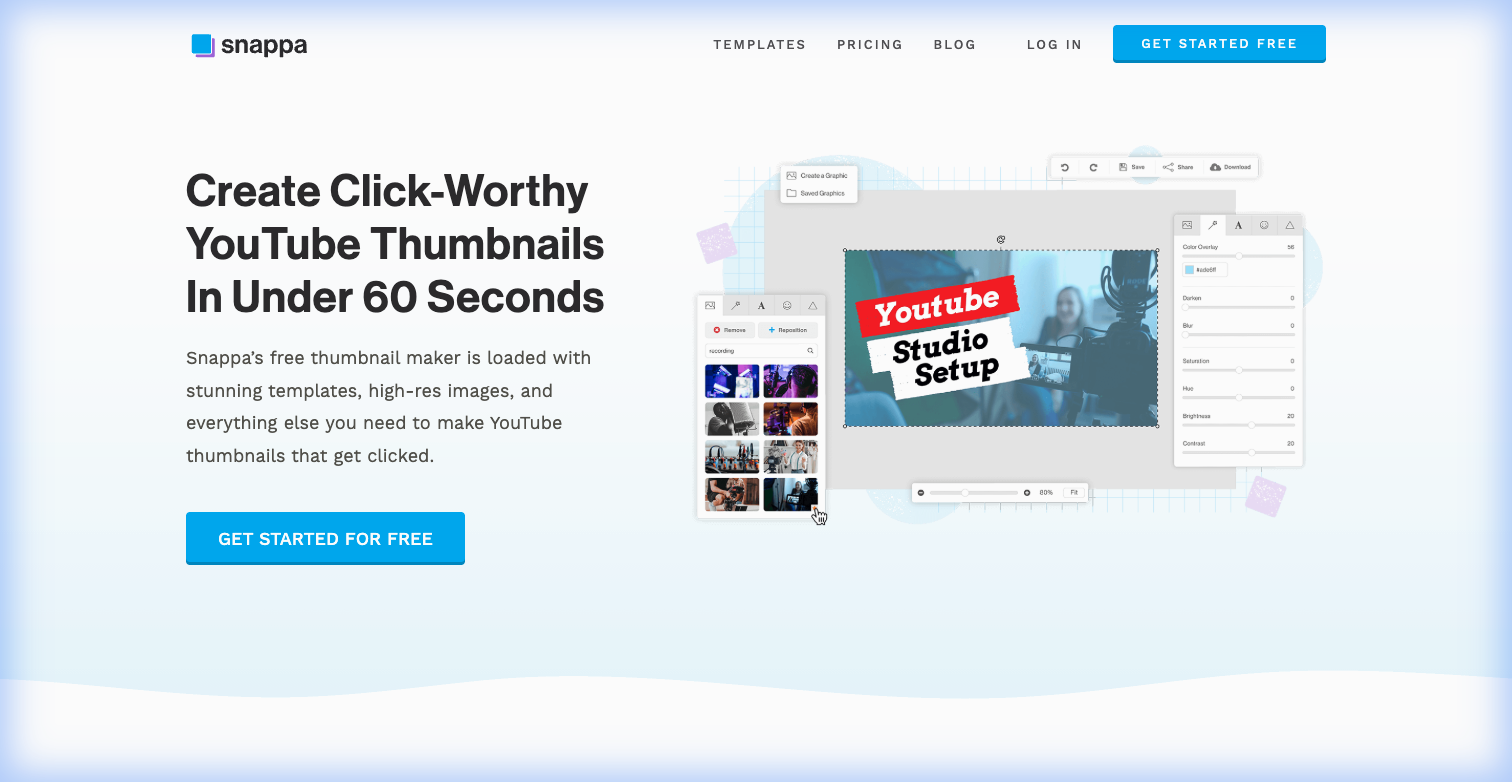
Snappa's YouTube thumbnail maker
Snappa's entire value proposition is speed. Open the editor, pick a pre-sized YouTube thumbnail template, swap in your text and image, download. Done. The whole process takes roughly 2-3 minutes if you know what you want.
The template library is solid, and you get access to millions of royalty-free stock photos. The drag-and-drop editor is arguably the simplest of any tool on this list — even simpler than Canva, because it offers fewer options and keeps the interface clutter-free.
The free tier includes:
- Access to all templates
- Millions of stock photos and graphics
- Pre-sized dimensions for YouTube and other platforms
- Basic text and editing tools
Where it falls short: Here's the catch — 3 downloads per month. That's it. For weekly uploaders, you'll burn through your free allowance in a few weeks. No background remover, no custom font uploads, no social media integrations, no mobile app. The free tier is basically a trial.
Verdict: Perfect for creators who upload infrequently and value simplicity above all else. If you publish weekly or more, you'll need the Pro plan ($15/month) or a different tool.
6. Pikzels — The AI Wildcard
Best For: Creators who want AI to do the heavy lifting
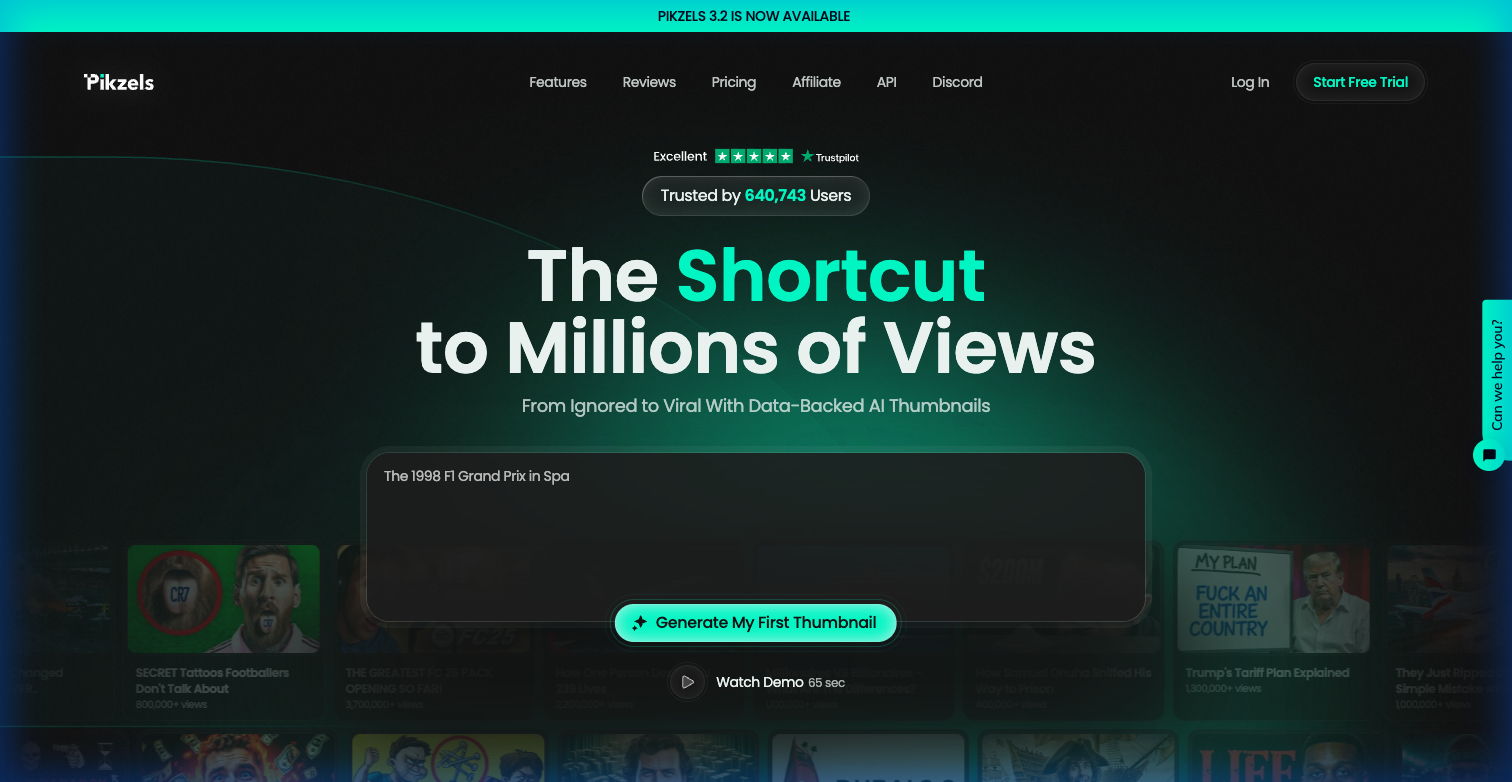
Pikzels AI thumbnail generator
Pikzels represents a completely different approach. Instead of starting with a template and customizing it, you describe your thumbnail concept in text — or paste a YouTube link — and the AI generates multiple thumbnail options for you. It's trained on millions of viral thumbnails and can even score your designs with a "virality" prediction.
The most interesting feature is Recreate: paste any YouTube URL, and Pikzels will generate a new thumbnail inspired by that video's design. It won't copy it directly, but it'll pick up on the colour scheme, layout style, and composition. It's essentially "study the competition" on autopilot.
The free tier includes:
- Free trial with ~5 thumbnail generations (watermarked)
- AI thumbnail generation from text or video links
- Virality scoring and analysis
- Title generation
Where it falls short: Honestly? The results are inconsistent. You might generate 10 thumbnails and find 2 that are usable. Text rendering in AI-generated images still has issues (expect occasional gibberish text overlays). Most creators use Pikzels to get 80% of the way there, then finish in Canva. Also, the free trial is extremely limited — the watermark on free thumbnails makes them barely usable, and paid plans start around $20/month for 200 credits.
Verdict: Best used as a brainstorming and starting-point tool rather than your entire workflow. Pair it with Canva or Pixlr for polish.
7. CapCut — The Hidden Gem for Video Creators
Best For: Creators already editing videos in CapCut
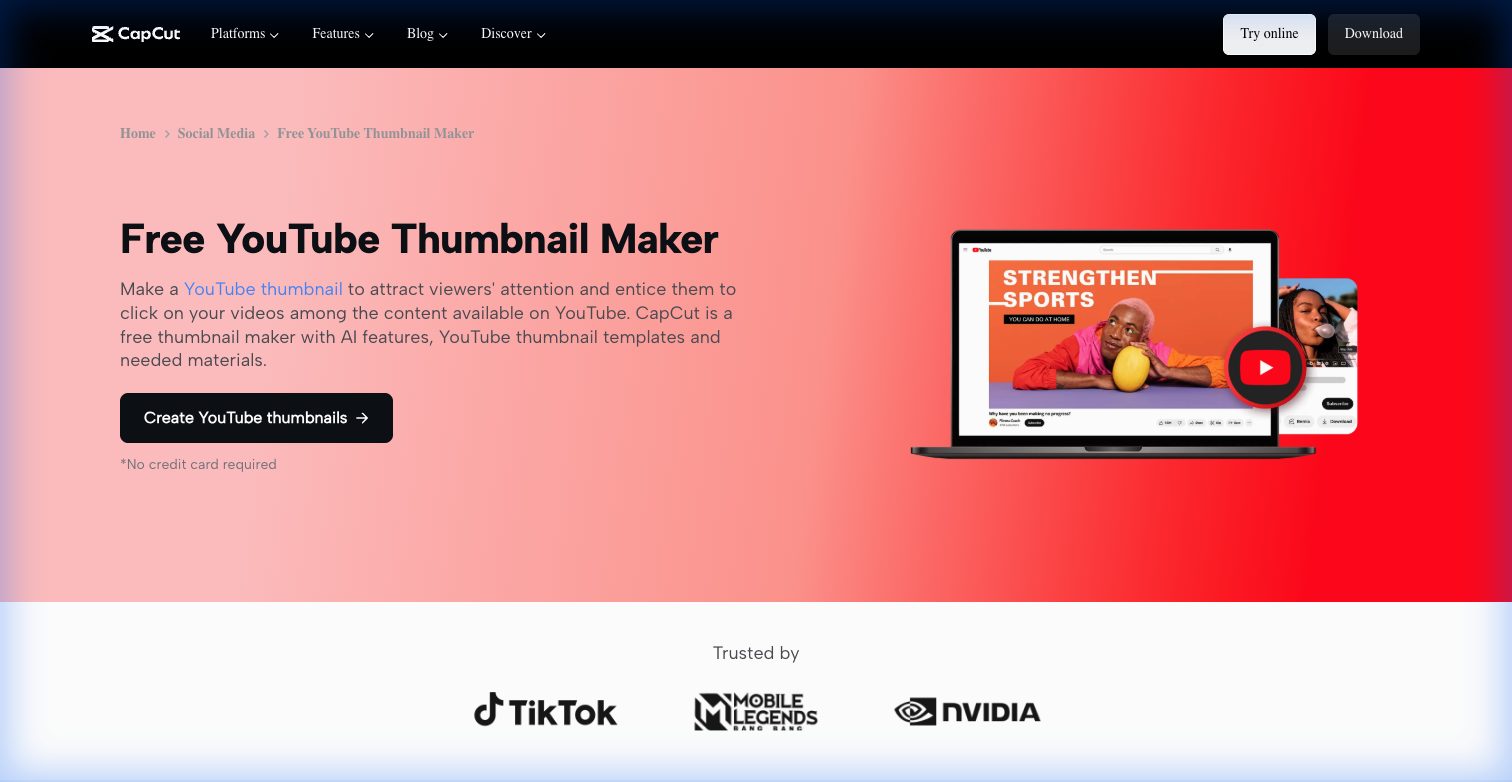
CapCut's free YouTube thumbnail maker
If you're using CapCut for video editing (and millions of creators are), you might not realize it also has a surprisingly capable thumbnail maker built in. The AI image generator can create thumbnail-ready visuals from text prompts, and the photo editing features handle background removal, filters, and text overlay cleanly.
The biggest advantage here is workflow consolidation. Instead of jumping between your video editor and a separate design tool, you can create your thumbnail in the same app where you're editing your video.
The free tier includes:
- AI text-to-image generation
- Background removal
- Photo filters and enhancement
- Text and graphic overlays
- Export optimized for YouTube dimensions
Where it falls short: CapCut's thumbnail features are secondary to its video editing tools. The template library for static thumbnails is growing but not as mature as Canva's. If you don't already use CapCut for video editing, there's no reason to adopt it just for thumbnails.
Verdict: A smart choice if CapCut is already part of your workflow. Otherwise, Canva or Adobe Express are better standalone options.
YouTube Thumbnail Specs You Need to Know
Before you fire up any of these tools, make sure your thumbnails hit YouTube's requirements:
- Resolution: 1280 × 720 pixels (minimum width: 640 pixels)
- Aspect Ratio: 16:9
- Max File Size: 2MB
- Accepted Formats: JPG, PNG, GIF (non-animated), BMP
- Safe Zone: Keep critical text and visuals within the central 1235 × 338 pixel area — this ensures nothing gets cut off on different screen sizes
For YouTube Shorts thumbnails, the optimal resolution is 1080 × 1920 pixels (9:16 aspect ratio).
5 Thumbnail Tips That Actually Move the Needle
-
Use faces with emotion. Thumbnails with expressive human faces consistently outperform those without. Shock, excitement, disbelief — exaggerated expressions grab attention.
-
Keep text to 3-5 words max. Your thumbnail text should create curiosity, not explain the video. "I Was WRONG" works better than "Correcting My Previous Analysis of Market Trends."
-
Design mobile-first. Over 70% of YouTube views happen on phones. If your text isn't readable at the size of a postage stamp, it's too small.
-
Avoid the bottom-right corner. YouTube places the video duration timestamp there. Any text or important visuals in that corner will be obscured.
-
A/B test relentlessly. YouTube now has a built-in "Test & Compare" feature in YouTube Studio. Use it. A 1% CTR improvement on a video with 100,000 impressions means 1,000 extra clicks — for free.
The Bottom Line
For most creators, Canva is the answer. The free tier is the most generous, the template library is the deepest, and the learning curve is basically flat. Start there.
If you want more polish, Adobe Express delivers. If your thumbnails are photo-centric, Fotor shines. If you want Photoshop-level control without the price tag, Pixlr X is your move. And if you're curious about AI-generated thumbnails, Pikzels is worth experimenting with — just don't rely on it alone.
The only wrong choice is sticking with auto-generated thumbnails. Custom thumbnails are one of the highest-ROI investments you can make as a creator. Pick a tool, start making them, and watch your CTR climb.
Explore More
- Best AI Tools for Content Creators - Full roundup of creator tools beyond thumbnails.
- 7 Best AI Tools for Faceless YouTube Channels - The essential AI stack for faceless creators.
- How to Start a Faceless YouTube Channel - Step-by-step beginner's guide.
- YouTube Shorts vs Long-form - Which format is better for growth.